Summarize:


How AR Teams Should Submit Invoices in Coupa (The Right Way)

Janine Sullivan
02 June 2026

Quick Summary
There are 4 ways to submit an invoice with Coupa: SANs, the Coupa Supplier Portal, cXML, and email. In this guide, we break down the submission process, common errors, and structural problems that slow down payments, and explain how Lunos automates invoice submission, saving your team hours of manual work.
What AR Teams Need to Know About Submitting Invoices Through Coupa
If your customer uses Coupa, you submit invoices on their terms.
The portal is free, and the mechanics are well-documented… but the day-to-day reality is messier. Each Coupa instance is configured by the buyer, so the fields, attachments, and approval flows that worked for one customer may break the submission for the next.
This guide walks through how the Coupa Supplier Portal actually works for AR teams: the four submission methods and when to use each, a step-by-step walkthrough of the most common path (PO flip via the CSP), the errors that block payment most often, and the reasons portal submission gets harder the more Coupa customers you bill.
Why Listen to Us?
At Lunos, we've spent years working with finance teams handling anywhere from 500 to 50,000 invoices per month, and AP portal submission is the single biggest source of unpaid labor we see AR teams stuck doing. Coupa is one of the worst offenders, simply because it's so widely adopted.
Backed by General Catalyst and Cherry Ventures, we built our portal submissions product specifically to handle the part of AR your team shouldn't be doing.

We'll walk through how Coupa works first, then show you how the manual workflow falls apart at scale and what we do about it.
What Is the Coupa Supplier Portal?
The Coupa Supplier Portal (CSP) is the supplier-side interface of Coupa. From inside the portal, you can receive purchase orders, submit invoices, check payment status, and respond to sourcing events.
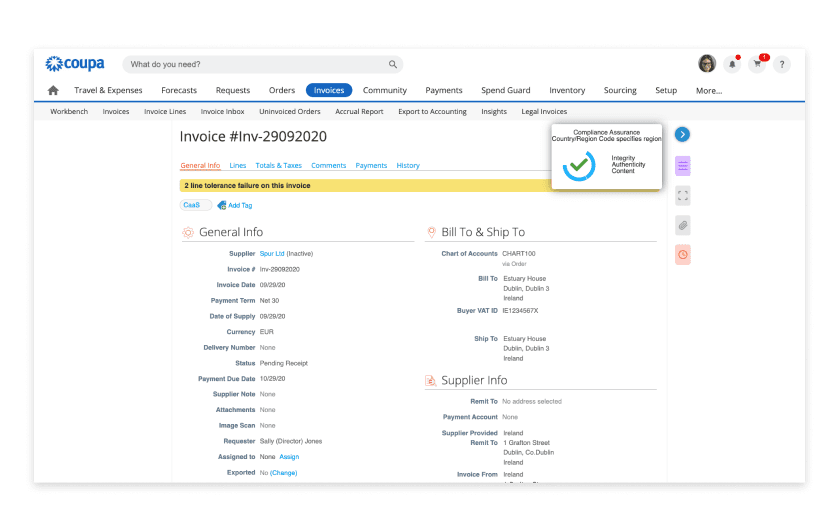
Two common points of confusion worth clarifying upfront:
- The CSP is free for suppliers. You do not pay Coupa to use it. Some paid Coupa Advantage tiers exist, but the basic portal access costs nothing.
- You need an invitation. You can't sign up for Coupa on your own. Each customer using Coupa has to invite your company through their instance. Once invited, you can link multiple customers to a single CSP login.
Every buyer configures their Coupa instance differently. Mandatory fields, required attachments, tax handling, and PO requirements all vary by customer. Most of the day-to-day pain comes from this fragmentation.
The Four Ways to Submit an Invoice Through Coupa
Coupa supports four submission methods. Which one you use depends on your volume, your engineering resources, and what your customer has enabled on their end.
1. Supplier Actionable Notifications (SAN)
SANs let you create an invoice straight from the PO email. Click a button, fill out a hosted form, and submit. No CSP login required.
This method is best for low-volume suppliers with one or two Coupa customers. You don't get a dashboard or payment status tracking, but for occasional invoices, it's the fastest path.
2. Coupa Supplier Portal (CSP) Login
To use the CSP web interface, you must first log in to Coupa, then find the PO, click Create Invoice, and fill out the form. You can also create an invoice without a PO if your customer has enabled it.
This is the most common method and is the best option for medium-volume teams that don't want to build an integration. You get the full dashboard, payment status, and multi-customer management.
3. cXML
For direct system-to-system integration, your ERP sends invoice data to Coupa in cXML format, and Coupa routes it to your customer.
This method is best for high-volume suppliers with engineering resources to build and maintain the integration. Setup involves your customer's Coupa admin mapping fields and testing the connection. Once live, it removes manual entry entirely.
4. Email / PDF
Lastly, you can email a PDF invoice directly to a customer-specific Coupa address. Coupa's OCR reads it and creates a draft invoice.
This method is only available if your customer has enabled it, and it is rarely the best option. OCR errors are common, with draft invoices often needing manual correction on the AP side. Payment delays from this method are frequent.
The shortcut: If you're billing more than a handful of Coupa customers, manual submission is the bottleneck this guide is going to end up pointing at. Lunos automates the upload step across Coupa and every other portal your customers use.
Step-by-Step: Submitting an Invoice in the CSP
The walkthrough below covers the most common path: PO flip via the CSP web interface.
- Log in at supplier.coupahost.com with your CSP credentials.
- Click the Orders tab. You'll see a list of POs from every Coupa customer you're connected to. Use the customer dropdown in the top right to filter.
- Find the PO you want to invoice against. Click the gold coins icon in the Actions column to create an invoice from it.
- Confirm or update the invoice header fields: invoice number, invoice date, currency, and payment term. Some customers lock these; others let you set them.
- Confirm your Legal Entity, Remit-To, and Ship From addresses. If you have not set up a legal entity yet, Coupa will block submission until you do. Tax IDs (VAT, ABN, GST) are validated by region.
- Edit the line items. You can adjust quantities and prices within the PO's allowed range. Add tax at the line or invoice level, depending on your customer's configuration.
- Attach the official tax invoice PDF. Most customers require this even though you're filling in the data inline. The file usually must be a PDF, sometimes with a size cap (commonly 20MB).
- Click Calculate to verify totals match. Then click Submit.
The most common places people get tripped up:
- Forgetting to set up the legal entity
- Missing the tax invoice attachment
- Mismatched bill-to addresses
- Tax IDs without the correct country prefix (e.g. "GB" before a UK VAT number)
What About Invoices Without a PO?
Some Coupa customers allow non-PO invoices (often called "blank invoices"). If yours does, you'll see a Create Blank Invoice button on the Invoices tab. You'll need to manually enter all the details a PO would normally pre-fill: line items, GL coding (if required), and the customer contact who should approve it.
If your customer hasn't enabled blank invoices, you'll need a PO before you can submit anything. Ask your customer's AP team to issue one retroactively if needed.
Common Coupa Submission Errors and How to Fix Them
These are the most common errors users face:
"Invalid Attributes in Document"
A required field is missing or formatted incorrectly. Most often it's the tax ID (wrong country prefix), an invoice date in the future, or a currency that doesn't match the PO.
Re-check the header section field by field, correcting any errors before re-submitting.
Bill-To Address Mismatch
The bill-to address on your invoice doesn't match what's on the PO.
Don't edit the bill-to address manually. Select it from the dropdown so it matches Coupa's stored value exactly.
"Account NA Does Not Exist"
Your customer's accounting integration can't find the GL account you've coded the invoice against. This is an issue on the customer side.
Ask their AP team which account to use, or whether they want to handle GL coding internally.
PO Closed / Cannot Invoice
The PO has been fully invoiced, expired, or closed by the buyer.
Ask your customer to reopen it or issue a new one. You can't reopen a PO from the supplier side.
Missing Legal Entity Setup
Coupa won't let you submit until you've added a legal entity under Setup > Legal Entity Setup.
You need this configured once per supplier account, not per customer.
Attachment File Type Errors
Coupa accepts PDF, JPG, PNG, and a few others, but the size cap is usually 20MB per file. If your invoice PDF is too large or in an unsupported format, you'll get a generic error.
To fix this, just compress the PDF or split the attachment into smaller files.
Where Coupa Submissions Slow Your Cash Down
With Coupa, manually submitting invoices is manageable enough, but as you scale up, these small frictions and structural issues will lead to headaches and lost time:
- You can't bulk-submit across customers. Each Coupa customer is a separate session and separate field configuration.
- Every customer's Coupa is configured differently. Mandatory fields, attachment requirements, GL coding rules, and approval flows are all set by the buyer. What works for one customer may fail for the next.
- Submission errors aren't surfaced quickly. A rejected invoice can sit in your customer's AP queue for weeks before anyone tells you. Meanwhile, your AR aging report will show it as outstanding.
- You're doing data entry work that your customer's AP team would otherwise pay for. Buyers adopt Coupa to push invoice keying onto suppliers. The savings on their side come directly out of your AR team's time.
- Multiply across 5, 10, 50 customers all using different portals, and your AR team is half-employed by another’s procurement team.
This part of the AR workflow has never had a good solution. Suppliers either eat the manual cost or hire offshore teams to handle portal submissions. Neither scales well.
How Lunos Automates Coupa Invoice Submission
Lunos is an AI-native finance platform that now handles AP portal submission across every customer portal your AR team touches, including Coupa. Rather than treating every submission like a one-off task, Lunos automates the upload process so you can scale without adding headcount.
Here's how it works:
Onboard
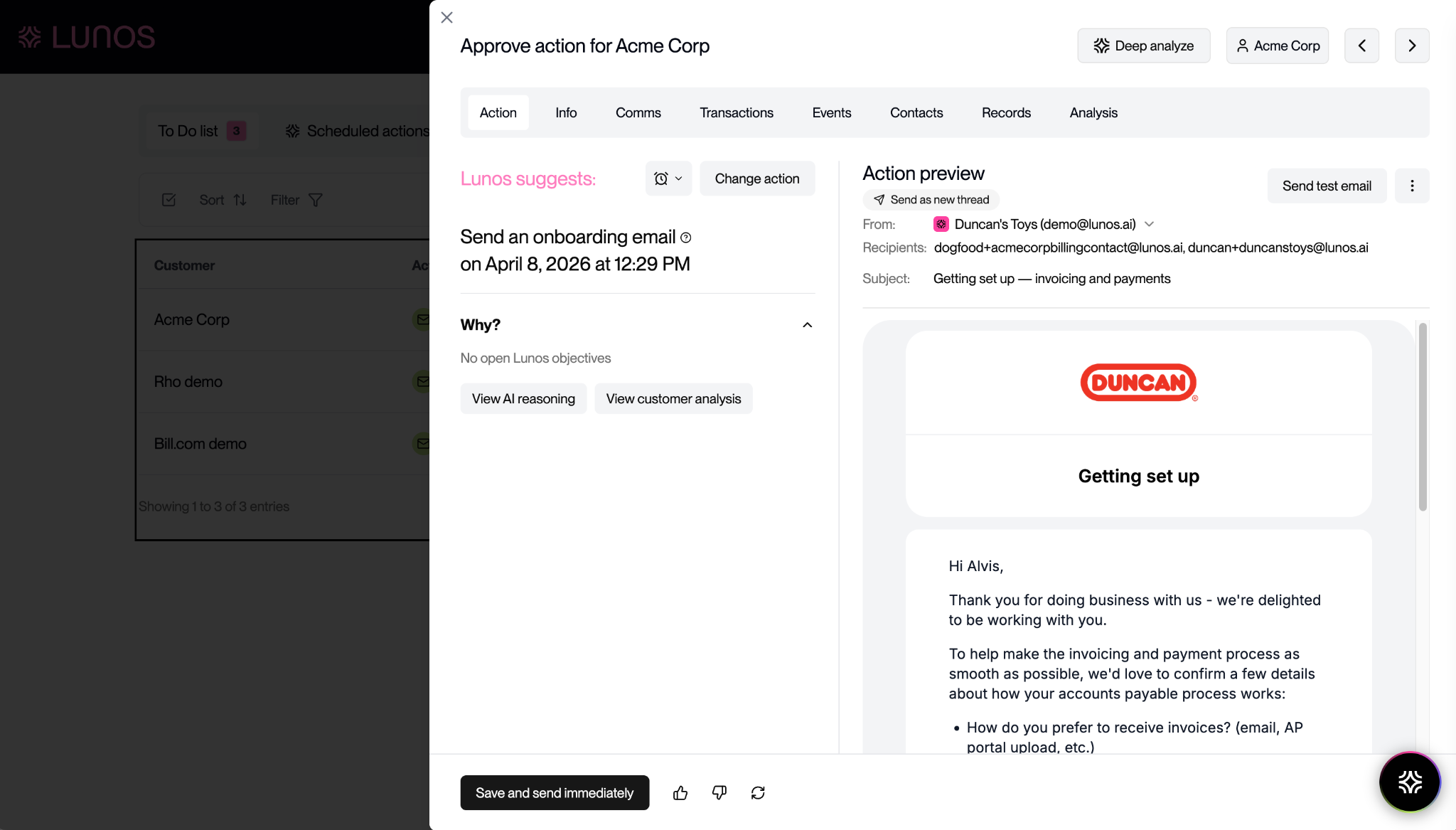
When a new customer signs on, Lunos asks them how they want to receive invoices and collects the information needed to submit through their portal: vendor ID, submission method, PO requirements, payment run frequency, and billing contacts.
This means no more chasing AP managers for portal details weeks later.
Set Up
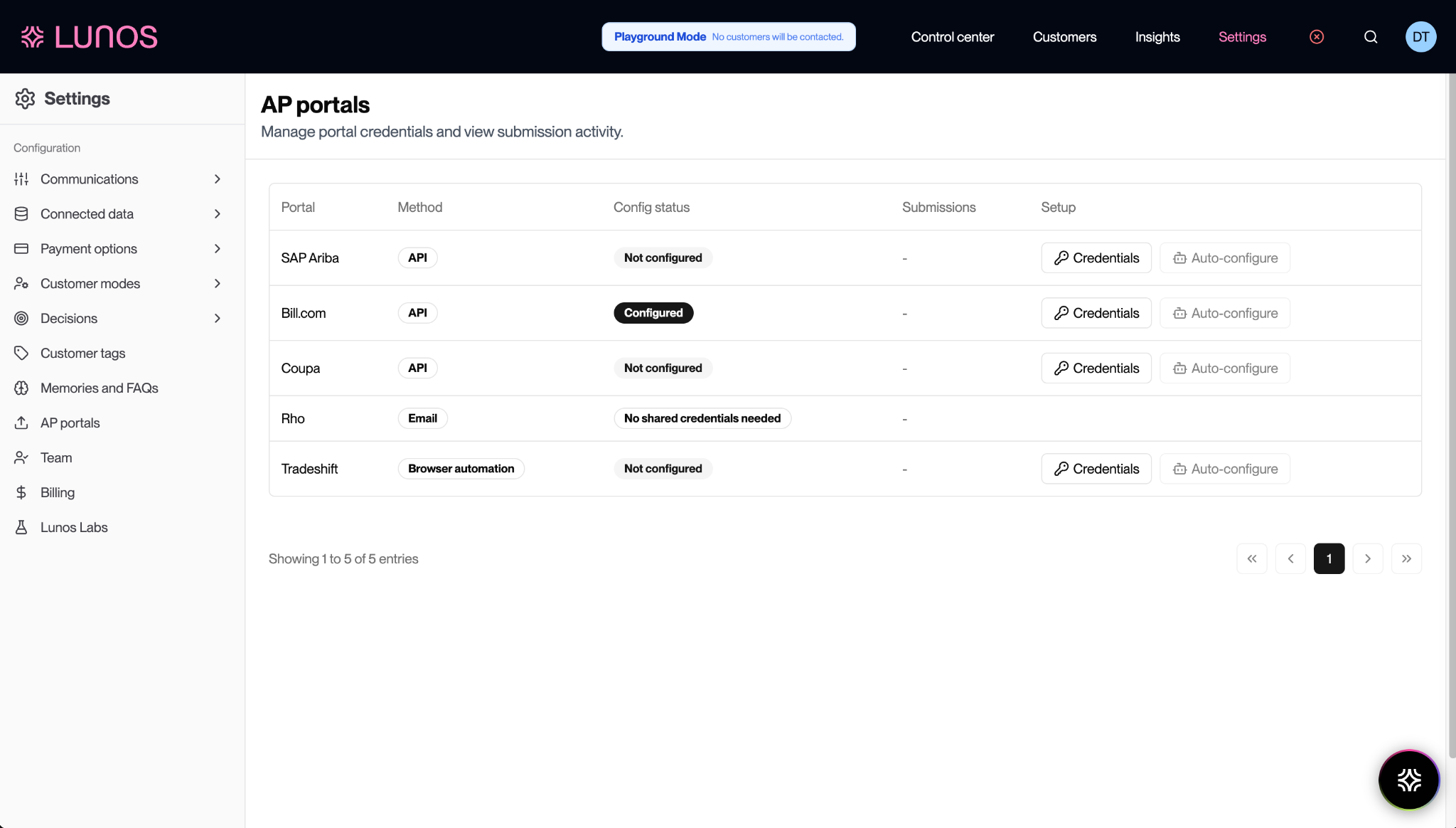
Portal credentials and submission methods are stored at the customer record level. For Coupa, that means API where supported, or AI agent upload for the parts of the workflow that aren't API-accessible. A one-time setup per portal, not per customer.
Upload
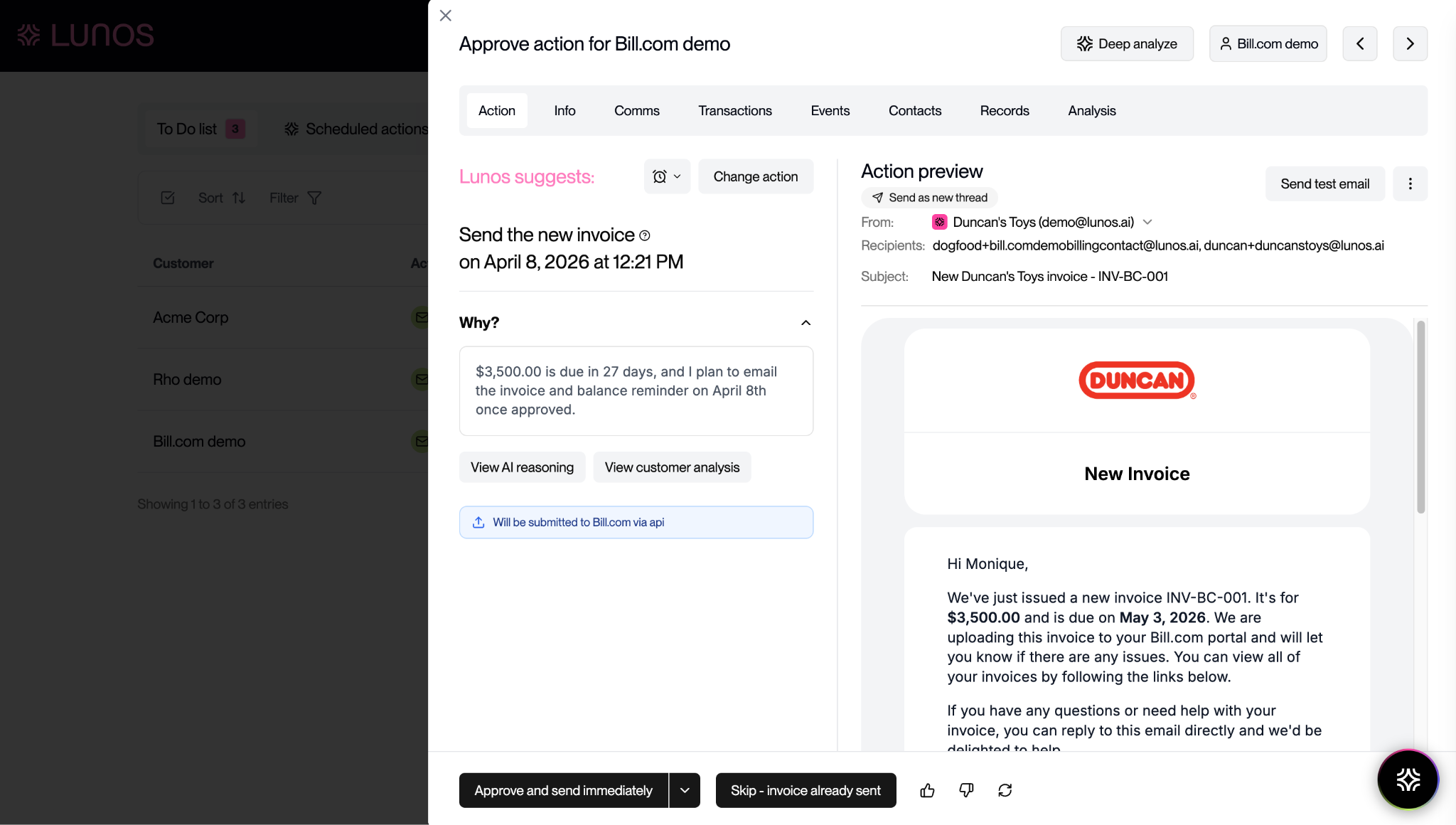
For each new invoice, Lunos submits it through the right channel in the right format and confirms receipt.
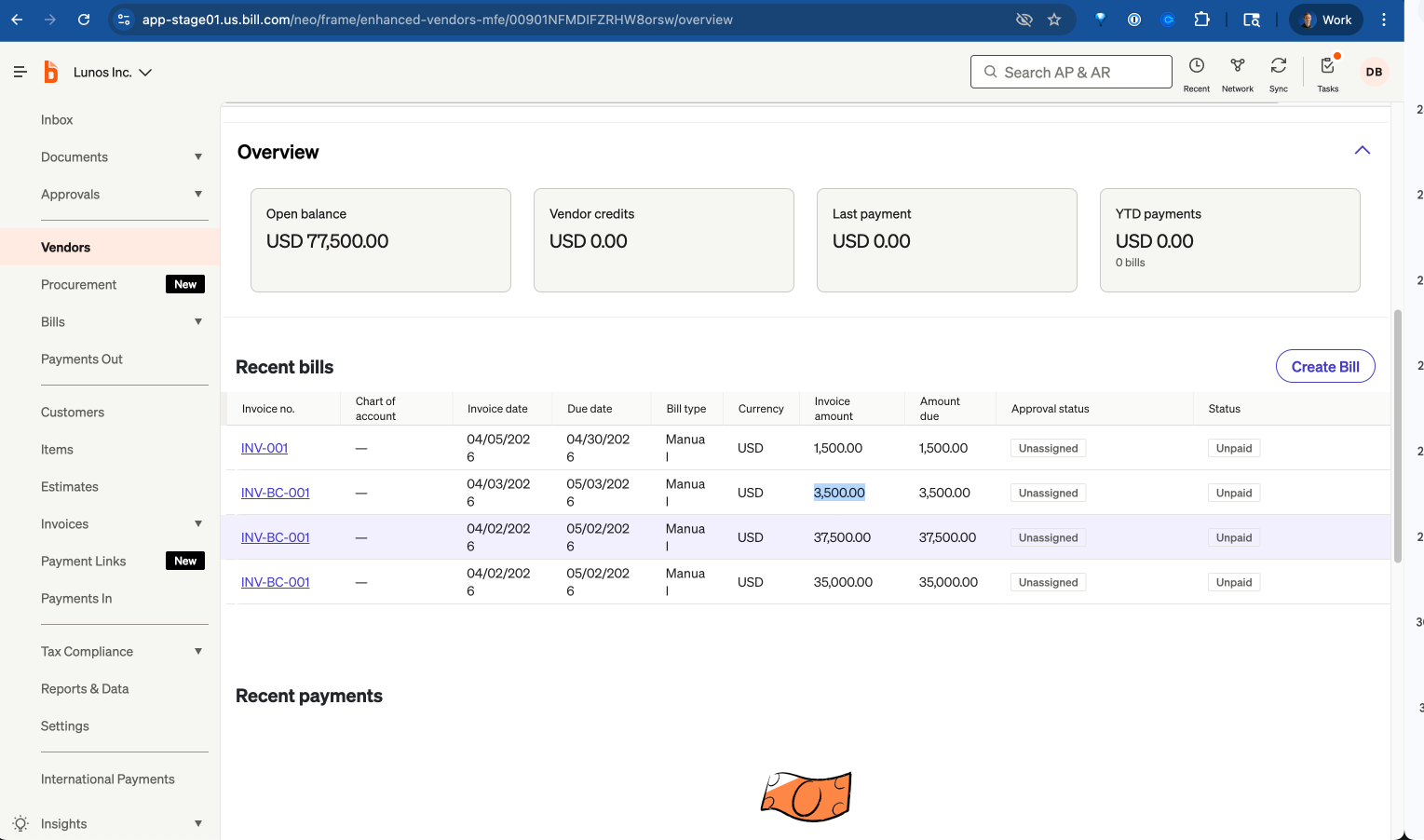
The AR team approves the action, and Lunos handles the field mapping, the attachment, and the submission itself.
Collect
Submission errors are surfaced immediately rather than sitting in the customer's AP queue.
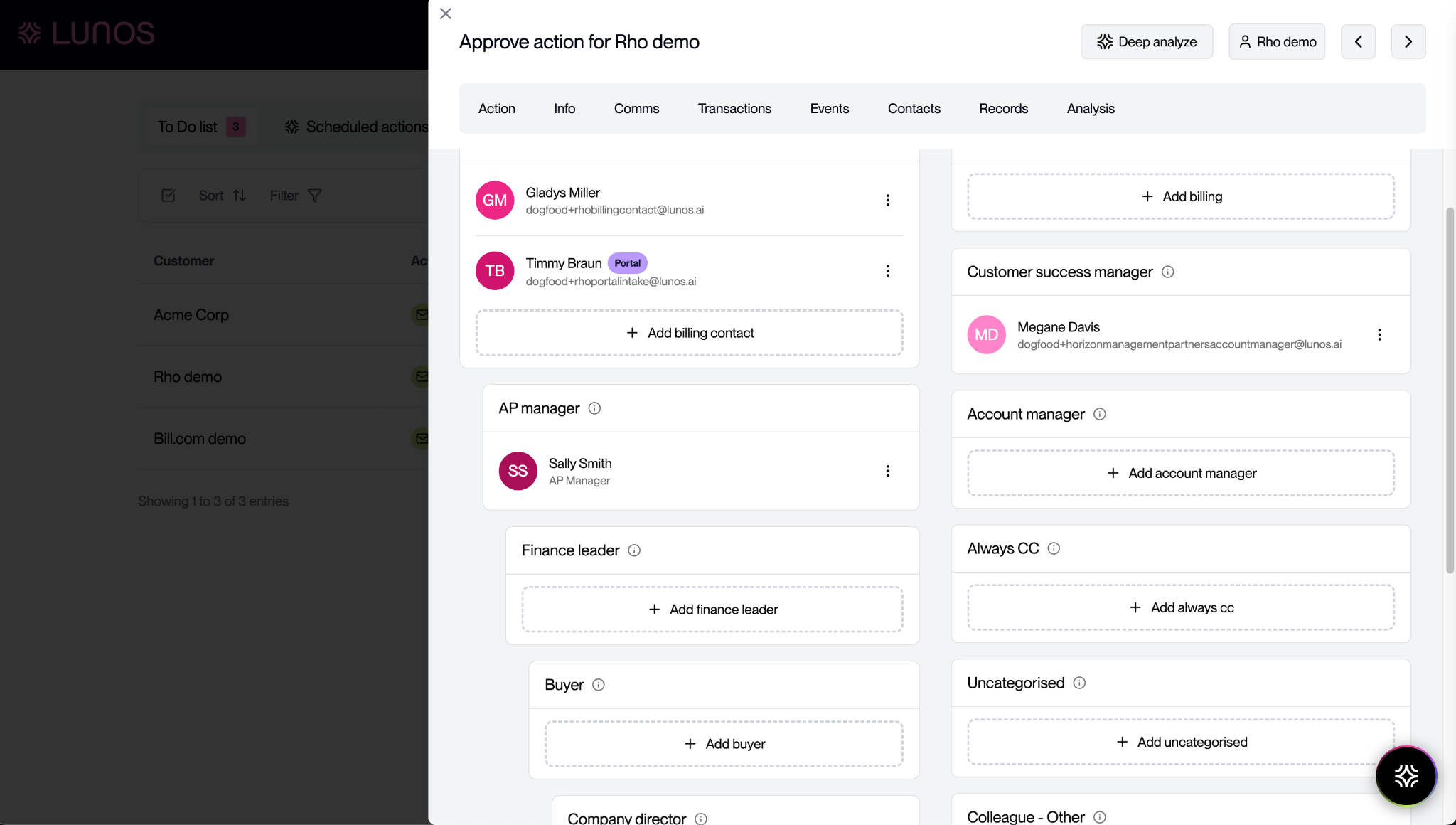
Once paid, the invoice reconciles inside the same Lunos workflow that handles collections and dunning, so your team isn't switching between portal tools, collections tools, and reconciliation tools.
Request a demo to see how Lunos Portals can help solve your Coupa troubles.
Coupa Is Not Going Anywhere
Coupa is entrenched in enterprise AP. If your customers use it today, they'll keep using it. The job for AR teams isn't to fight that. It's to make portal submission consistent and painless across every customer you bill, whether they're on Coupa, Ariba, Bill.com, Ramp, or Tradeshift.
If portal submissions are eating your team's time, join the early access for Lunos Portals to see how it handles the full submission lifecycle.
FAQs
Is Coupa Free for Suppliers?
Yes. While a paid tier is available, the Coupa Supplier Portal is free to use. You don't pay Coupa anything to receive POs, submit invoices, or check payment status.
Do I Need an Invitation to Use the Coupa Supplier Portal?
Yes. Each customer using Coupa has to invite your company through their instance. You can't sign up for the CSP independently. Once you have an account, additional customers can link to it.
Can I Submit an Invoice Without a PO?
Only if your customer has enabled blank invoices. If they have, you'll see a Create Blank Invoice option in the CSP. If not, you'll need a PO from them before you can submit anything.
How Do I Check the Status of a Coupa Invoice?
Log in to the CSP and go to the Invoices tab. Each invoice shows a status (Pending Approval, Approved, Disputed, Paid). For payment confirmation and remittance details, you may need to check with your customer's AP team directly.
What File Types Can I Attach to a Coupa Invoice?
PDF, JPG, PNG, GIF, TIFF, and a few others. The size limit is usually 20MB per attachment, though buyers can configure this lower. PDF is the safest choice for tax invoice attachments.
Make your receivables effortless and focus on what you do best